Is a NAS a backup for a small business? Not by itself. A network-attached storage (NAS) device is a great place to keep shared files and a great place to send backups, but if the NAS is the only place your files live, it is storage, not a backup. A real backup is a separate copy that survives when the original is deleted, encrypted by ransomware, stolen, or destroyed. For most small offices in Orange County, that means pairing the NAS with at least one copy that lives somewhere else, ideally offsite and protected from changes.
Below, we explain why the difference matters, what a practical NAS backup setup looks like for a small office in Irvine, Santa Ana, Costa Mesa, or Anaheim, and the questions to ask before you trust your business files to a single box on a shelf.
What a NAS Actually Does
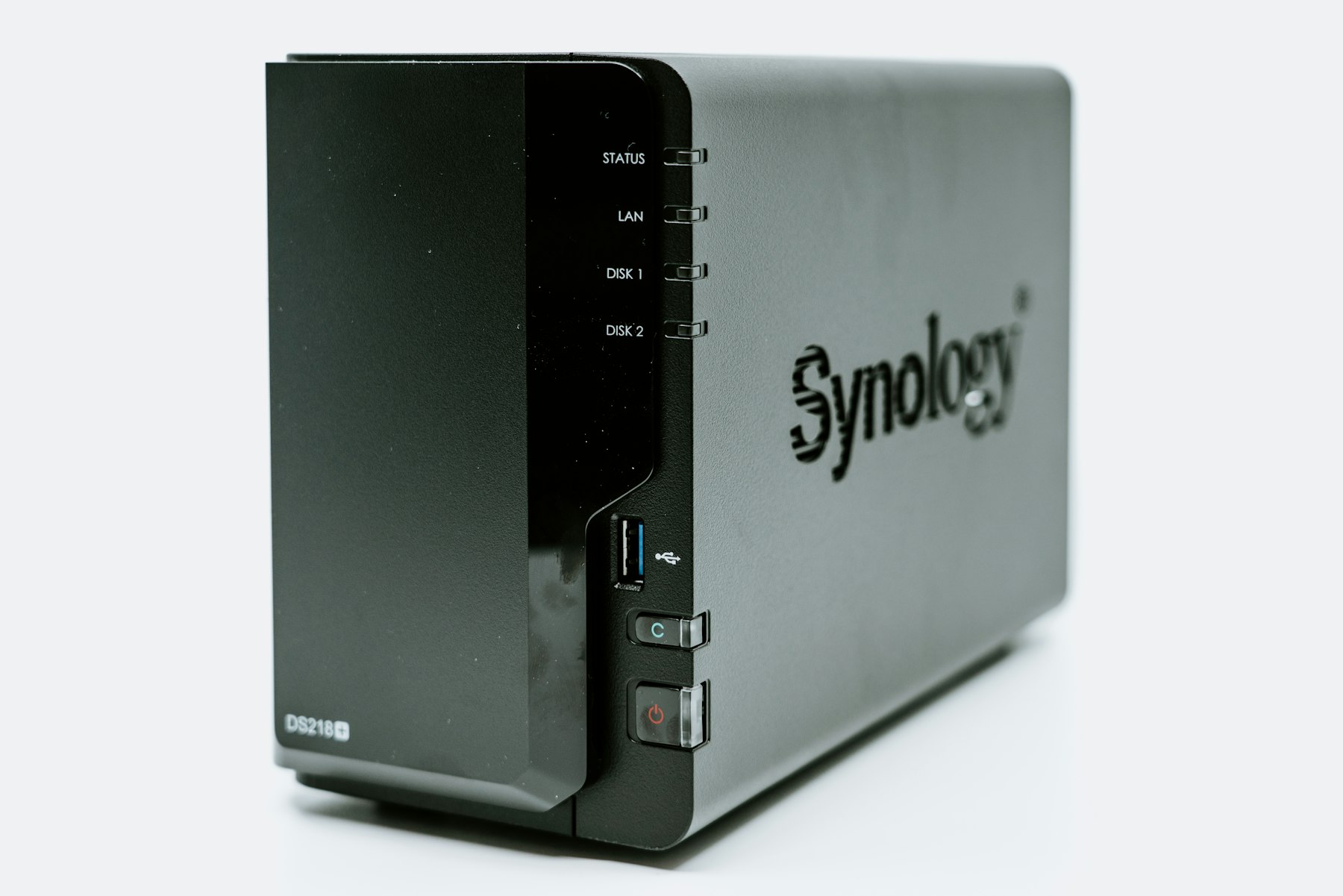
A NAS is a dedicated storage device that connects to your office network so everyone can reach the same files. Instead of documents scattered across individual laptops, the team saves to shared folders on the NAS. Most business NAS units hold several hard drives and can be configured so that one drive can fail without losing data.
That last feature is where the confusion usually starts. Drive redundancy (often called RAID) protects you from a single hard drive wearing out. It does not protect you from the most common ways small businesses actually lose files:
- Accidental deletion or overwriting. If someone deletes a folder or saves over a spreadsheet, the redundant drives faithfully delete or overwrite it too.
- Ransomware. Malware that encrypts files can reach any shared folder a logged-in user can reach, including the NAS.
- Theft, fire, water, or power damage. If the NAS is in the same closet as everything else, one bad day can take out the original and the “backup” together.
- Device failure beyond one drive. A failed power supply, a corrupted volume, or multiple drives failing close together can make the whole unit unreadable.
In short, redundancy keeps you running through a hardware hiccup. A backup lets you go back in time to a clean copy.
Storage vs. Backup: The Simple Test
Ask one question: if this device disappeared tonight, would we still have our files tomorrow? If the answer is no, you have storage, not a backup.
A common, easy-to-remember guideline is the 3-2-1 approach: keep three copies of important data, on two different types of storage, with one copy offsite. A NAS can play a big part in that plan. It can be the main shared file location, or it can be the place where your computers and servers back up to every night. It just should not be the only copy.
If you want a broader comparison of where a NAS fits next to other storage options, our earlier post on the differences between SAN, NAS, and cloud storage covers the basics.
What a Practical NAS Backup Setup Looks Like
Every office is different, but a sensible setup for a small business usually includes these pieces:
1. The NAS as the shared file location
Team members save work to shared folders on the NAS, with permissions set so people can only reach the folders they need. Limiting access is not just tidy; it also limits how much a single compromised account can damage.
2. Snapshots on the NAS
Many business NAS systems support snapshots, which are point-in-time versions of your folders. If a file is deleted or encrypted, you can roll back to a version from before the problem. Snapshots are fast to restore from, but because they live on the same device, they are a first line of recovery rather than a complete backup.
3. A second copy somewhere else
This is the part most offices skip. The NAS should copy its data on a schedule to a separate destination, such as a second device at another location or an offsite or cloud backup service. That copy is what saves you if the office itself has a problem.
4. Protection from ransomware and mistakes
Look for backup options that keep older versions and cannot be easily altered or deleted from the office network. If ransomware can reach and delete your backups with the same login it used to encrypt your files, the backup will not help.
5. Monitoring and test restores
Backups fail quietly. A drive fills up, a password changes, a job stops running, and nobody notices until the day a file is needed. Someone should be checking that backup jobs complete, watching drive health alerts, and actually restoring a test file now and then to prove it works.
Signs Your Current NAS Setup Needs Attention
- Nobody in the office is sure where the backups go, or whether they run.
- The NAS sits in the same room as your network equipment and has no offsite copy.
- Everyone logs in to the NAS with the same shared account.
- The NAS has not received firmware updates in a long time.
- The drives are close to full, or the unit has been sending warning emails that nobody reads.
- You have never tried restoring a file from backup.
If two or more of these sound familiar, it is worth having someone review the setup before you need to rely on it.
Do You Even Need a NAS?
Not every small business does. If your team works entirely in cloud apps and stores files in a cloud file service, a NAS may add little. A NAS tends to make sense when you work with large files that are slow to sync, such as design, video, CAD, or scanned records; when you want fast local access to shared folders; or when you want a local backup target for computers and servers so restores do not depend on your internet connection.
The right answer depends on how your team works, how much data you have, and how long you could afford to be without it. That is a conversation worth having before buying hardware.
How WinC Services Can Help
WinC Services helps businesses across Orange County and Los Angeles plan, set up, and support NAS storage, along with custom servers and SAN storage for teams that need more. You can learn more on our additional IT services page, which covers NAS storage, SAN servers, custom servers, and custom PC builds. If you would rather have someone keep an eye on backups and storage health as part of ongoing support, see our managed IT services or our IT support for Orange County businesses.
When you are ready to talk through your setup, book a time with our team, call us at (213) 855-3506, or email [email protected].
Frequently Asked Questions
Is RAID the same as a backup?
No. RAID spreads data across multiple drives so the NAS keeps working if a drive fails. It does not keep older versions of files, and it copies deletions, overwrites, and ransomware encryption instantly. You still need a separate backup.
Can ransomware encrypt files on a NAS?
Yes. If an infected computer has access to a shared folder on the NAS, ransomware can encrypt files in that folder. Snapshots, limited permissions, and an offsite backup that cannot be changed from the office network all reduce the damage.
Should my NAS back up to the cloud?
For many small businesses, an offsite or cloud copy is the simplest way to satisfy the “one copy offsite” part of a backup plan. The right destination depends on how much data you have, your internet speed, and how quickly you need to restore.
How often should a small business test its backups?
Regularly enough that you would notice a problem before you need the backup. At a minimum, restore a test file after any change to the setup and on a recurring schedule, and confirm backup jobs are completing successfully.
Do I need a NAS if we already use Microsoft 365 or Google Workspace?
Not always. If all your work lives in cloud apps, a NAS may be optional. It becomes more useful when you handle large files, want fast local file access, or want a local backup target for your computers and servers.